IMPORTANT: The Emissions tab displays if Carbon Performance Manager is enabled. See Extensions.
This tab displays a grid of Factors and a grid of each entry made for that Factor. To display data on the Emissions page, from the Site drop-down menu, select a site. From the Factor Group drop-down menu, select a Factor Group or select (All).
If a Factor or Factor Group is disabled or removed from a Profile, any data records associated with only that Factor or Factor Group are categorized in the Unknown Factor Group. To view these data records, from the Factor Group drop-down menu, select (Unknown).
All Factors within the Factor Group selection display in the grid. Once you select a Site, the country and state/city assigned to the Site display above the grid.

Emissions Data Entry
To enter data for factors, complete the following steps:
-
Select a Factor from the grid and then select the New button to add an entry.
-
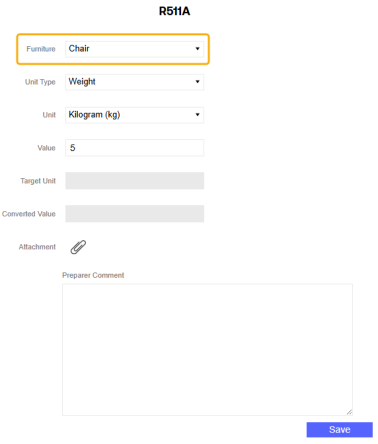
Enter all emissions data in the slide-out panel.
-
If a Control List is assigned to the Factor, there is a drop-down menu with the title of the Control List. Select a Control List member from the drop-down menu to enter data for that member. See Control Lists.
This drop-down menu does not display if no Control List is assigned. You must create a new entry for every Control List member you are entering data
-
The Unit Type drop-down menu defaults to the unit type assigned to that Factor. You can use the Unit Type drop-down menu to select a different unit type if needed. Only valid unit types for that Factor are displayed.
-
From the Unit drop-down menu, select a unit. Only valid units for that unit type are displayed
-
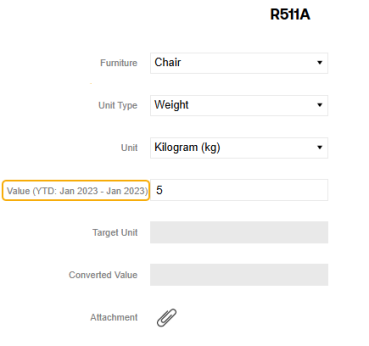
In the Value field, enter a value for the Factor entry. You cannot enter a numeric value exceeding 1019-1. Converted values also cannot exceed this number.
If the input basis is periodic, the Value field indicator displays the current workflow time. If the input basis is YTD, the Value field indicator displays a range from the current workflow starting period to the current workflow time.
-
Add an attachment or preparer comment if required. If a preparer comment is required, the entry cannot be saved until the comment is added. See Attachments and Comments
NOTE: The Target Unit and Converted Value fields cannot be edited. Once you save the entry, these values will display in the corresponding column grids.
-
-
Select the Save button.
For Factors that require multiple inputs, for example AreaOverTime, two Unit Type and Unit drop-down menus display for selection, and two Value fields display for data entry.
Emissions Data Audit
The Audit tab enables you to view all changes made to the selected entry. The tab displays all historical entries made, the user who made the entry, and the timestamp for the entry. The grid lists entries from newest to oldest.

